Friday, October 3, 2014

Problem and Solution of Connecting Outlook 2010 With Gmail

12:20 AM Posted by Unknown , , No comments
Since the morning I was trying to connect to my Gmail with Ms Outlook 2010. But I was unable to connect with my Google account. I was trying all the way to connect, but the problem is, a small screen appears on the outlook screen like the bottom.

Problem and Solution of Connecting Outlook 2010 With Gmail

And when I put the password and press OK, then it just appear again and again.
Then when I go to my Gmail account, a new message come to my account and that message show me “some unknown device try to connect with my Gmail account, which Gmail successfully blocked”.

But why this is happen, then I found that, because of Google privacy settings it just happens.
And I found the solution.
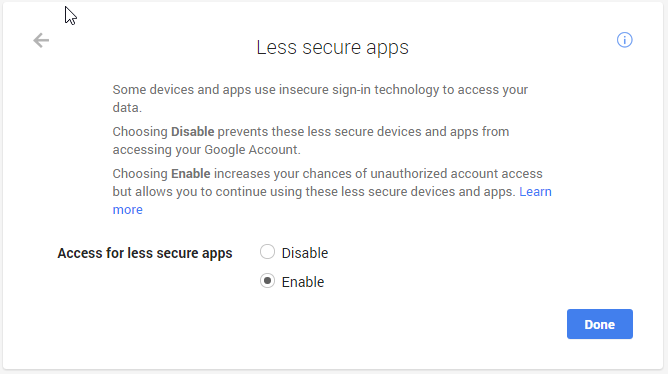
My less secure apps access was disabled. This was the reason I cannot create a connection between Gmail and outlook 2010. 

Problem and Solution of Connecting Outlook 2010 With Gmail

I just enable the access for less secure apps and try to connect my Gmail with Ms Outlook 2010 again. And it just works.

Process is simple.
- Select enable.
- Press Done.

Problem and Solution of Connecting Outlook 2010 With Gmail

Connect outlook 2010 with gmail account .
Done.
Problem and Solution of Connecting Outlook 2010 With Gmail


Wednesday, October 1, 2014

Microsoft Announced Its New OS Windows 10

12:08 AM Posted by Unknown , No comments
Microsoft Announced Its New OS Windows 10


In an event in San Francisco Microsoft announced it's new operating system.  and it will be Windows 10. and this official announcement of windows will actually close all the rumors about windows 9 or windows x. although this is going to be a big jump from windows 8 to windows 10. Windows 10 will run on different platform from smartphone to gaming console.
one of Microsoft spokesman Terry Myerson said  "Windows 10 will deliver the right experience on the right device at the right time".
Myerson also said that 
windows 10 will be our most comprehensive platform ever. 

it can be said that Windows 10 will be the combination of Windows 7 and Windows 8.


Tuesday, September 23, 2014

How to find free high quality images online.

8:06 PM Posted by Unknown , No comments
Image is always attracting for its viewer, and expresses a lot of thing without saying a single word. An image can highly improve your presentation whether it is online or off line, and catch its viewers within a moment. And if it is a high quality and high regulation image, then viewers will be more attracted toward the images.

How to find free high quality image online.


But the question is, how. How to find high quality image, which should not violate someone’s copyright. And when the search engines are more cleaver then before, it is really difficult to use someone else photo, without the owner’s permission. Search engine like Google can easily find the original owner of the photo, and the original owner can also find, who is actually use his/her photo. Which can be a really big problem?
So when the problem is big, the question is, is there any alternative source of free image?
Fortunately yes, there are several Free High Quality Image sources are available, who provide high quality and high regulation image for free.
And these images can be use even commercially for no cost.

Here are some of the great sources of free high quality image online.


1. Flicker:    flicker is the biggest photo sharing site in the web. And some of world’s great photographer shares their capture in it.  Not everyone allows their photos to be used commercially, but under creative Commons licensed Content, free and high quality images can be found.

2. Pixabay:  Pixabay’s images can be used anywhere under the CCO license.

3. Stockvault:       It is not just a vault of photo, but also vault of texture, template, background and more.

4. Picjumbo: Its slogan says everything about it. totally free photos for your commercial & personal works .


5. Superfamous: Another high quality Image source. Images are licensed under Creative Commons Attribution 3.0.  Images can be used for personal as well as commercial use as long as credit is provided.

6. 
openphoto: Start it's journey from 1998, not surprisingly it has big collection of photos. 

7. Morguefile: The best feature of this site is it's search tools. 

8. pixelperfectdigital: It Has mainly the collection of digital art and illustration. 

9. imageafter:  Impressive with it brick wall and artistic blur.

10. pdpics: Images can be used for both personal and commercial use, but with attribution.


Thursday, September 18, 2014

Remove Selected History From Google Chrome.

5:09 PM Posted by Unknown , , No comments
Google always like to provide something more to its user. Suppose you are a google chrome user and you do not want google to keep the records of your browsing history.
So google chrome is very much ready to help you. Google chrome will remove your history according to your need.


Suppose you want to remove a specific address history, you can do that or you want to remove all the history from the beginning of chrome installation, you can do that too. As it is highly flexible browser, it provides some more features.
Like past hour’s history removal option or past day or even form the beginning.

Remove History Selectively

  • Go to the browser history by pressing ctrl+H or write “chrome://history/” in the browser address bar.
  • This will open the browser history.
  • Now select the address form the left sided check box and click on the remove selected item on the top.
  • Now a new window will appear, click on the remove button. And your selected history will be deleted.

Remove Selected History From Google Chrome.


Remove History from past Hour or past day.

  • Go to the browser history and click on the click on the clear browsing data button.
  • clear browsing data window will be on your screen with several option.
  • select whatever you want to delete, like cookies, history, password, autofill data and etc.
  • Then from the drop-down menu select past hour, day or week.
  • Now click on the clear browsing data.


 That’s it, history will be deleted.

Remove Selected History From Google Chrome.
There is another simple selection option available to select all history of a page with two click.

Their is another way to delete a specific history
On the top of the screen write the name of the domain or what ever you want and press enter.
and you will get history relating to your search. and you can delete those.
Remove Selected History From Google Chrome.


Select the top history item by checking it and then on the last item of the page with SHIFT key and select the whole page.

That's is how you can easily remove your history for Google chrome.

Monday, September 15, 2014

SanDisk's latest 512 GB SD card

11:10 AM Posted by Unknown , No comments
SanDisk’s new SD cards can hold up to 512 GB of Data. This 512GB SD card will cost near about $800.

This is designed for HD video recording at a rate of 95 MB/s for professional use and can capture  up to 4K Video without any interruption.

SanDisk's latest 512 GB SD card


The card's built-in Advanced Wear Levelling and Error Correction Code engine enhances endurance and reliability.

SanDisk Extreme Pro SDHC and SDXC UHS-I Cards are shockproof, X-ray proof, and waterproof and ready to handle whatever life throws at them. 

You can capture in almost any climate—the card operates in temperatures ranging from -13 to 185 degrees Fahrenheit.

This will be a good package for the professional camera men and to the movie related persons. 
Along with 512GB there are also 256GB and 128GB SD cards are also available.

Sunday, September 14, 2014

Use your browser as an offline calculator

10:51 PM Posted by Unknown , , No comments
People use built in calculator for calculation in their computer. Some times for instant use you may use Google as a calculator. But do you know that there is another calculator is available in your computer.
Yes and that is your browser. You can use your browser as an offline calculator.
Most of the modern browsers provide this facility, not for simple calculation of math but also some complex calculation too.

This option can be found in the browsers JavaScript console. 

use your browser as a offline calculator

Simply press

ctrl+shift+j (for google chrome)

F12 and than ctrl+2 ( for Internet Explorer)

ctrl+shift+k ( for Mozilla )
After pressing this command in you browser your browsers JavaScript console will open.
Now type whatever you want to calculate and press enter.
And you will get the result.


Saturday, August 30, 2014

Google Authorship Will No Longer Be Available

12:39 AM Posted by Unknown , , No comments
Google Authorship Will No Longer Be Available

Google Will No Longer Show Authorship in Search Result.

On The Official Authorship Support Page Google Announced That "Google Authorship Will No Longer Be supported In Web Search".

We've gotten lots of useful feedback from all kinds of webmasters and users, and we've tweaked, updated, and honed recognition and displaying of authorship information. Unfortunately, we've also observed that this information isn't as useful to our users as we’d hoped, and can even distract from those results. -Says Jhon Mueller
Google Starts The Authorship Markup Service on mid 2011. At That Time The Intention Was To Allow Authors To Link Their Published Content To Their Google Plus Profile And To Gain Followers.
But After Three Years Of Experiment The Program is Not So Useful As Google Hoped. Says One Of Google Webmaster Trends Analyst John Mueller.
This is Happen, Just After Few Months When Google Plus  Boss Vic Gundotra Leave The Company.

Thursday, August 28, 2014

Host HTML, CSS and JavaScript files in Google Drive.

4:31 PM Posted by Unknown , No comments
Google give the opportunity to the developer to host their html,css,JavaScript and images file. Which ultimately give the developer an opportunity to deploy their web sites on the internet. and the interesting thing is, these published page will be indexed on the Google search.
This will be much more helpful for those who don't want to buy a hosting and who have a simple static web page, Specially to the developers like me who need to show the demo of their work to their client. 

This Process is not so hard to accomplished. with a few clicks anyone who have Google account can deploy their website. Just upload your content and make it public, that's all. 


HERE IS THE PROCESS 

  • Enter in to Google Drive Account.
  • On The Top Left Of The Window, Click on The Create Button.
    Host HTML, CSS and JavaScript files in Google Drive.
  •  
     
  • And From The Drop down Menu, Click On Folder.a small screen will appear, just write down the name and click on the create button.

Host HTML, CSS and JavaScript files in Google Drive.
  • A new folder will be created with your given name.

  • Now select the folder and click on the share button on the top of it.

Host HTML, CSS and JavaScript files in Google Drive.
  • A new window will appear, here click on the change button.

Host HTML, CSS and JavaScript files in Google Drive.
  • Now select public on the web and can view.

Host HTML, CSS and JavaScript files in Google Drive.
  • Now save.
  • Now Click On The folder and go inside it.
  • Click On The upload button and from the drop down click on the files or folder.

Host HTML, CSS and JavaScript files in Google Drive.
  • Now upload the files and folders from you computer. 
  • before uploading a new small window will appear on you screen, select the upload and share button.
Host HTML, CSS and JavaScript files in Google Drive.
  • after completion of upload, On The Top Of Your Browser, in the address bar You will find a string character after #folder/.

Host HTML, CSS and JavaScript files in Google Drive.
  • Open a new tab on the browser and write the follow addredss https://googledrive.com/host/
  • and paste the string character after it.
        Example:  https://googledrive.com/host/0B7HcXQ95u5GMQW9JSlhQc2tpUWM
     

    That's It, Now Your HTML, CSS Or JavaScript File is Published.